

Backblaze – Safety Frozen State – Reinstall Software
Safety Frozen
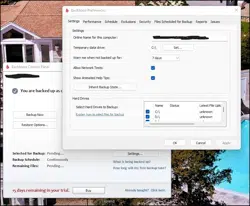
Found out this morning that my Backblaze backup Software had “safety frozen” my backup for my Desktop Computer.
This happens when Backblaze sees that there is a significant discrepancy between the files and folders on your computer and the those backed up by Backblaze and present online in the Backblaze vault.
Although the process is a little tricky, it is very doable to get things back to normal. below is a set of steps to take to get things back to normal.
First Steps To Determine Your Situation
- Step number one is to check if you lost any data. You basically need to sign in online with Backblaze, go to your Backblaze Dashboard and click on “review/Restore. The lower section should show you the files backup online with backblaze. Compare those with your files on your computer and see if any files are missing.
- If any files are missing on your computer, simply restore them back to your computer.
- If any files are missing online in the backblaze backup folder, simply backup those files.
- In both cases you can only do so once you “unfreeze” the “safety Frozen”.
Next Steps To Unfreeze the Safety Frozen
- Once you’ve established the status of your backup you should restart your computer and check whether the situation has resolved itself.
- If the situation is still the same and your Backup is still “Safety Frozen”, uninstall Backblaze.
- Next you need to restart the computer.
- Then you must sign into your Backblaze account and download the latest version of Backblaze.
- Once installed either “Inherit” an existing backup, or “Transfer License” and create a new backup.
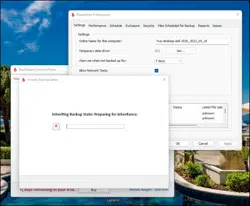 For full details on how to “Inherit Existing Backup” or “Transfer License” to create a new backup, check out this Backblaze article here. If you need help solving this issue, simply contact us.